
My ByteGPT not responding or stopped
Novelty!
Now there is a new version of templates ByteGPT+ v2, with native voice, image, file and sticker detection, providing more dynamic and personalized interactions.
Ask the AI
Your ByteGPT is not working? Check these points:
First of all... Test the functionality of your Salesbot. ByteGPT+ (Plus) with the original template.
- Download the Salesbot Template for your Assistant, within the Widget ByteGPT+ (Plus)
- Import into the Salesbots table
- Only test with the original Template active
If AI has stopped responding to your leads, there could be a few possible reasons for this. Here are some steps you can take to troubleshoot the issue:
1. The company’s plans Kommo ou ByteGPT Are they active?
Plano Kommo
Check whether your account Kommo is active, on the Advanced or Enterprise plan.
- To check, within your account Kommo, patch me Settings > Billing
Plano ByteGPT
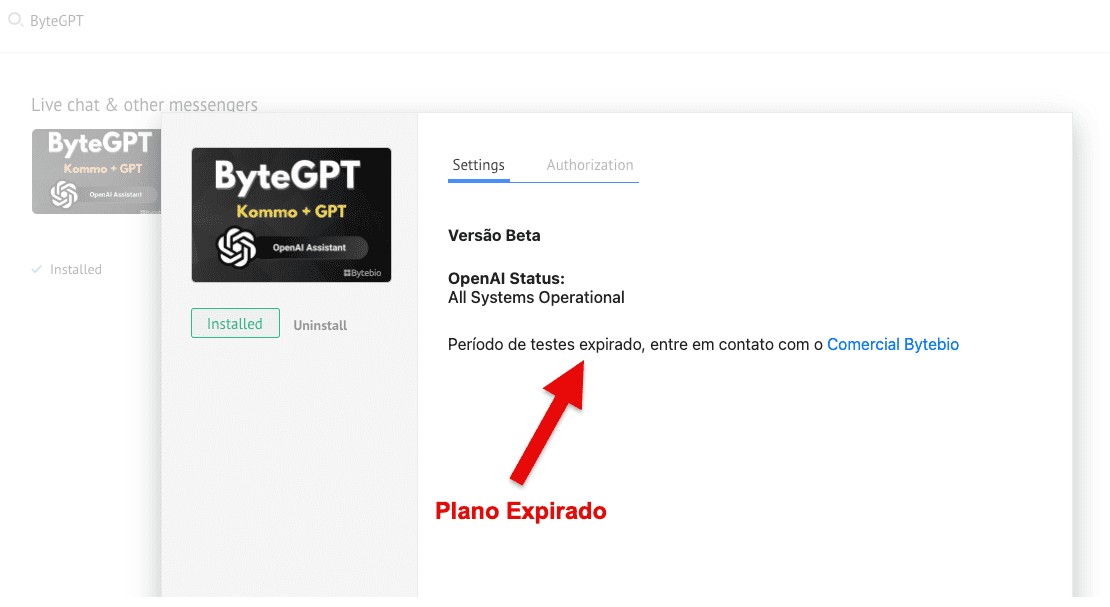
To check whether your ByteGPT is active, you can open the widget from ByteGPT ou ByteGPT+ (Plus) listed in Kommo, and see if there is any message about the expired plan.
2. The salesbot ByteGPT is it active?
Make sure your bot is activated and all conditions and triggers are configured correctly.
The salesbot corresponding to the ByteGPT, or a copy of it, must be active.
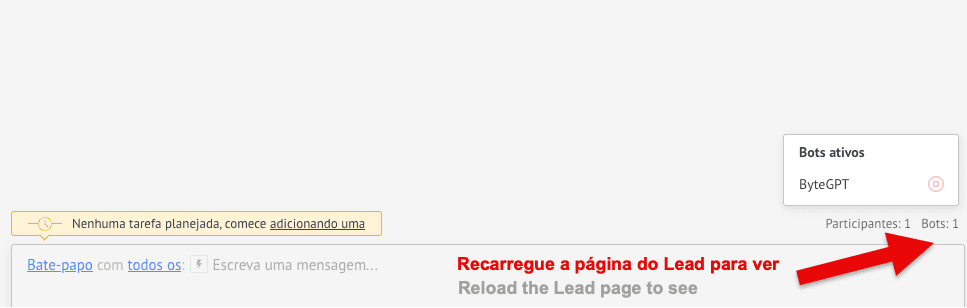
Reload your lead's page (F5) to see if there are active lead bots ByteGPT. Inside the Lead page, in your environment Kommo, click in the bottom right corner to see the list of “Active Bots” and check if there are any of the ByteGPT or that you have created from this.
3. Are there other flows (salesbots) running?
Check that there are no more active streams other than yours ByteGPT+ (Plus). If you have other flows that are “Waiting for message” the platform Kommo can stop the flows, as they compete with each other and the Kommo cannot arbitrate priority. As a good practice, you can stop one salesbot and start another, after it stops, leaving them sequentially and not in parallel.
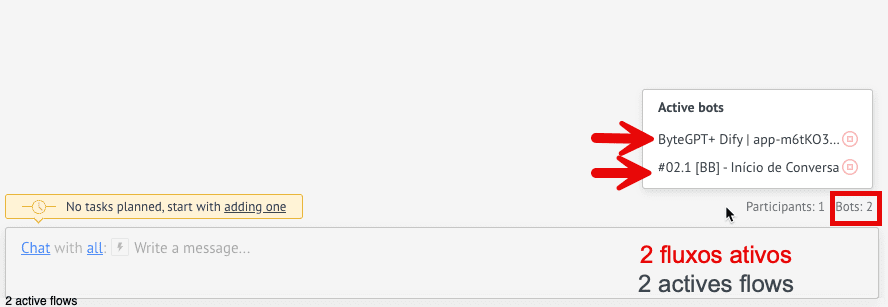
To check if there is more than one active flow, check your test lead for “Bots” with more than 1, in the bottom right corner of the screen, within your lead in the Kommo. To see this “Bots”, force the page to load or refresh.
If there is more than one, click the stop flow button (stop icon in red) and test only with the flow of the ByteGPT+.
Also check that you cannot have triggers triggering the start of other salesbots, simultaneously, with yours. ByteGPT+ and that contain “Waiting for message” waiting pause steps. If there are two parallel flows or more, but that perform actions such as defining fields, changing something in the CRM, or any functional action, there will be no problems. The problem only exists when two flows are waiting for messages from the client, in parallel.
4. Have break times been changed?
If they have n't been changed, it's okay.
If they have been changed , adjust the pause times to ensure they are not too short, which could interrupt the flow of the conversation. A pause time of 5 seconds (step 189) should be left after the ChatGPT Webhook and 10 seconds (step 59) for the Assistant Webhook.
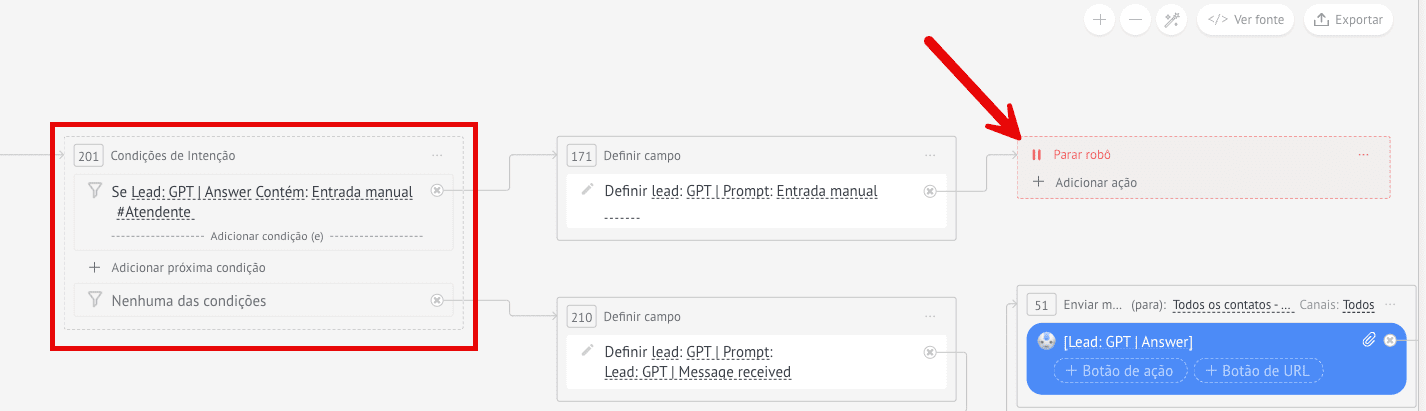
5. Did the condition (step 201) of "Lead: GPT | Answer" give #Attendant?
If not , that's okay.
If so, check the Bot Flow. Ensure that the configured intent (in step 184 “Intent Prompt”) for lead questions is not directing the response to “#Agent” in step 201 , as this will cause the bot to stop responding automatically.
You can change the options in the intention prompt, in step 184 and make the conditions you deem necessary in step 201, depending on your business, as well as delete the “Stop robot” step.
6. Do you have a balance on OpenAI?
Check if there is a balance or credit in your OpenAI account.
Within your OpenAI account, go to Settings > Billing and check the "Overview" tab to see if there is a balance in "Credit balance".
Or access this link directly to check: https://platform.openai.com/settings/organization/billing/overview
For ByteGPT work, with OpenAI, you must have a balance in the account (Credit balance).
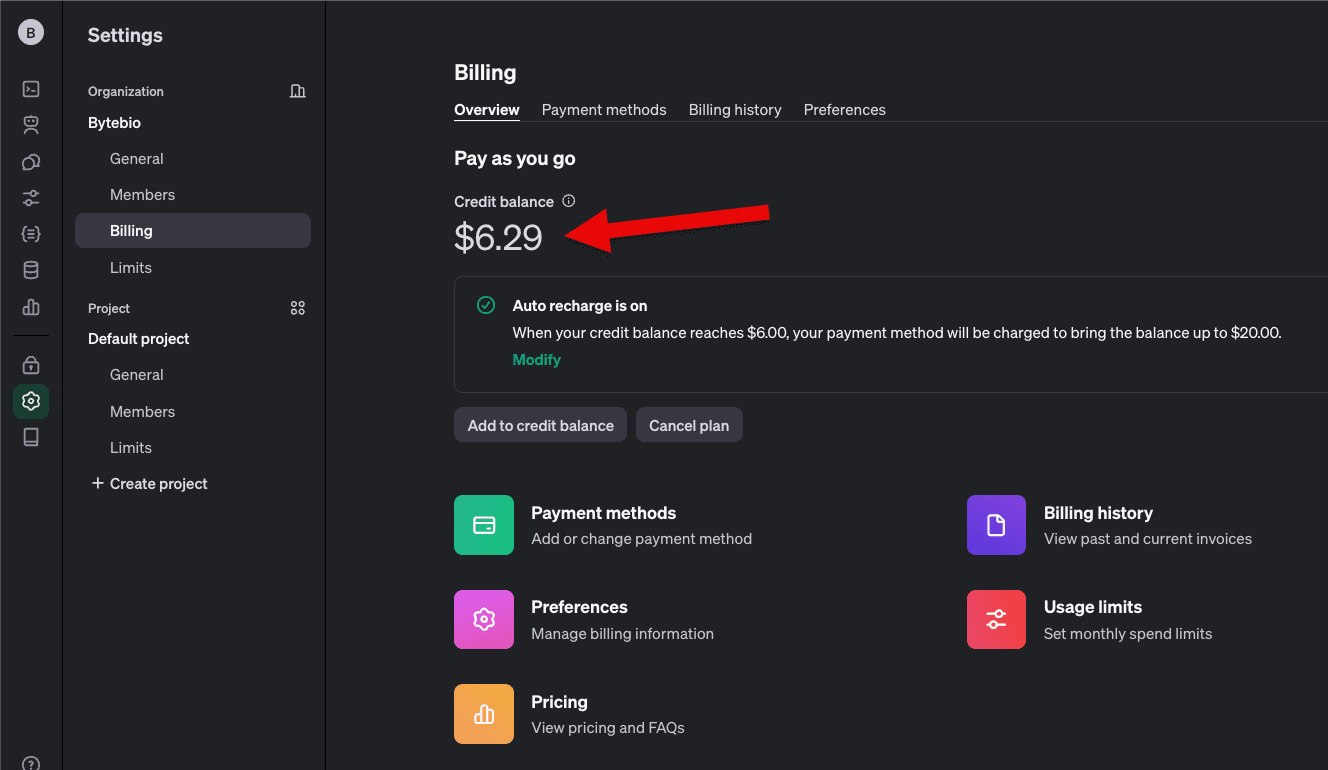
OpenAI > Settings > Billing
7. Does your API Key correspond to the same project as your Assistant, on OpenAI?
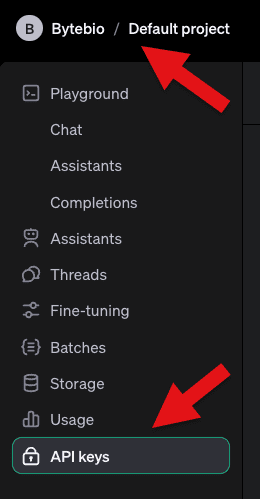
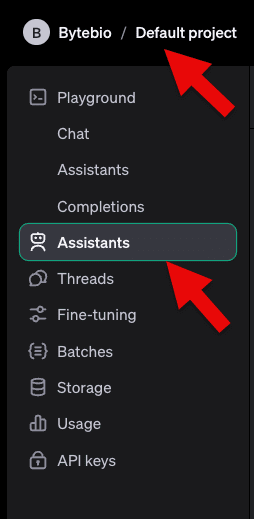
Check that the Project name in OpenAI is the same, both for the API Keys and for the Assistant.
Look at the top left of your Organization Name / Project Name.
Example:
"Bytebio /Default project”, in API keys
"Bytebio /Default project”, in Assistants
**
**
The API Key used must correspond to the same Assistant project, if the assistant used is OpenAI.
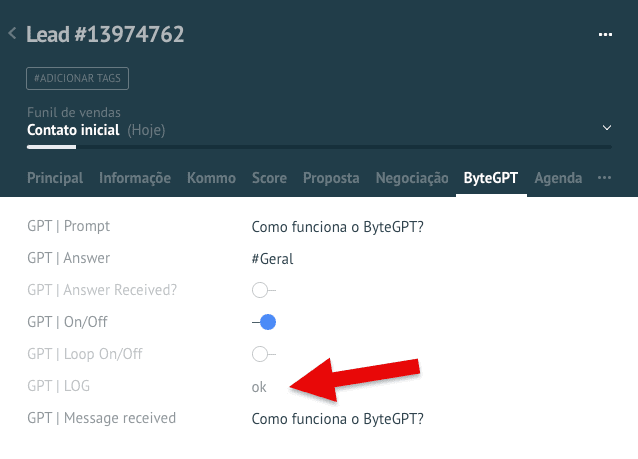
8. Have you checked if the "GPT | Log" field is "ok" or if OpenAI is experiencing instability?
Check the “GPT | Log”
Check if the Log field is returning “ok” or check for instabilities in OpenAI via this link: https://status.openai.com
If you have “ok”, he is well. This means that OpenAI is communicating with your account Kommo and ByteGPT it's working.
Instabilities in OpenAI
If the message is different from "OK," check for instability in OpenAI via this link: https://status.openai.com
Check possible error messages and what to do, through this article: “Troubleshooting: Common Error Messages ByteGPT"
9. Do you have Google Translate enabled in your browser?
Check if you have any translation enabled in your browser, such as Google Chrome. Activating translation may generate some anomalies in the behavior of salesbots or messages to be sent to customers, as well as changing the name of fields in salesbots, from Kommo.
Disable translation, if it is working, here:
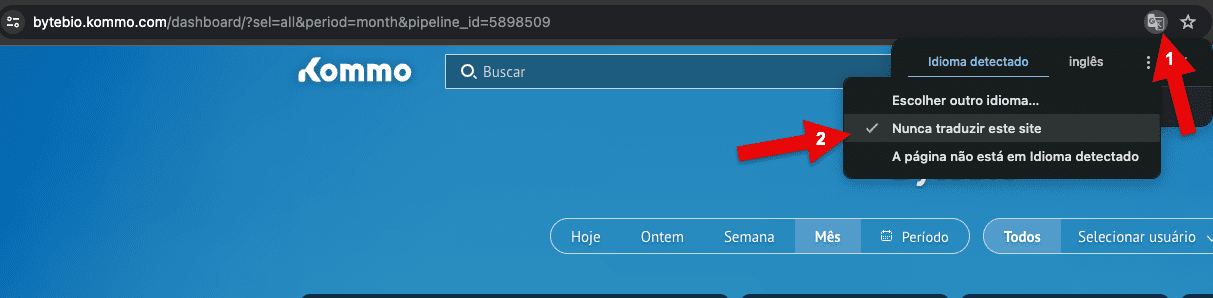
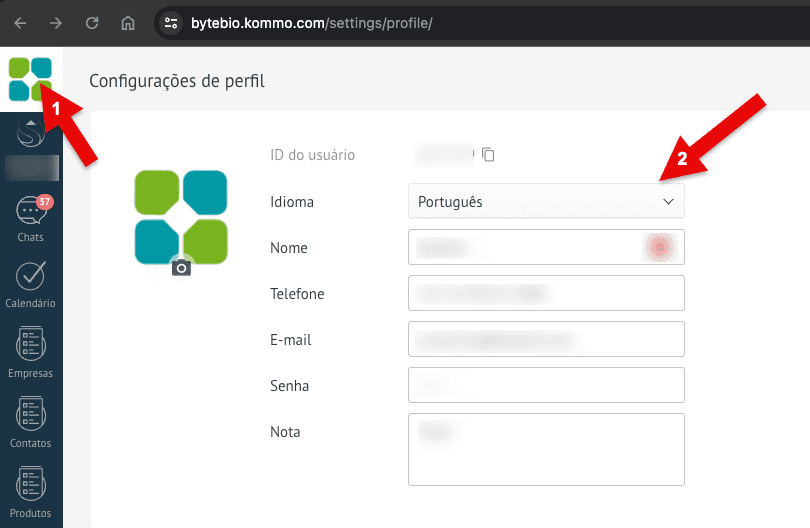
And if you want to change the language of your account, the Kommo allows you to select your preferred language in the profile settings.
To do this, click on your profile picture at the top left and select the option in the “Language” field. Or access the URL https://[accountname].kommo.com**/settings/profile/**
**
**
10. Does the last downloaded template match your last installation?
It is common for people to uninstall and reinstall the ByteGPT and that is why it is important to know that with each installation, new fields are created in “Leads”, grouped within a tab called “ByteGPT+”. If you uninstalled and reinstalled, it will create another tab with something like “ByteGPT+ 2”. However, a template must also be downloaded that corresponds to these respective fields.
11. The widget ByteGPT You have the appropriate permissions on your account Kommo?
Check whether the widget ByteGPT is duly authorized in Settings > Integrations > Select Widget “ByteGPT” > “Authorization” tab.
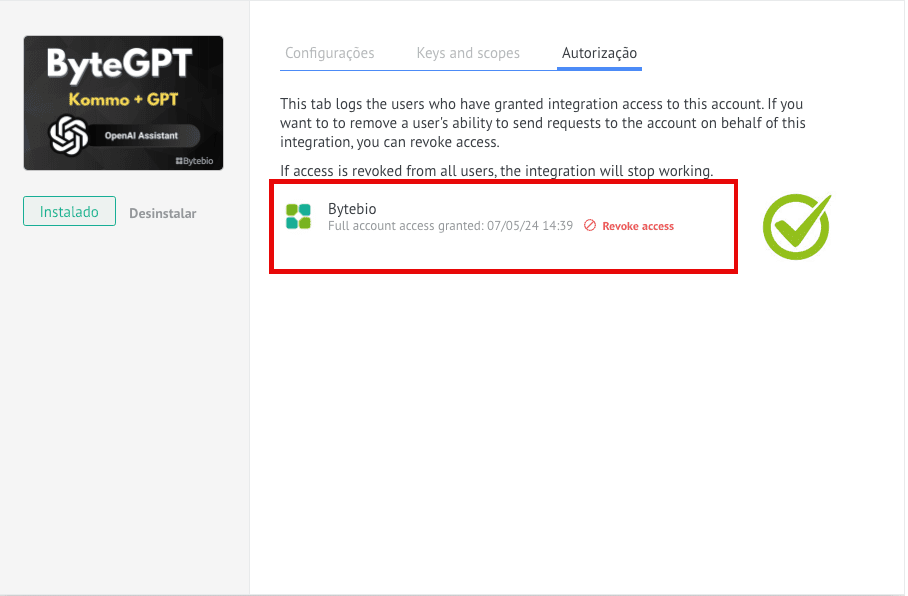
Settings > Integrations > Select Widget “ByteGPT” > “Authorization” tab
Case is not authorized, and with a message like “This app is installed, but no one has granted access yet“, you will need to uninstall the Widget and install it again. Therefore, do not revoke permissions da Bytebio, as the widget only works if the API is allowed.
Follow these steps to authorize again :
- Uninstall the Widget using “Uninstall”
- Install again the widget ByteGPT
- Fill out the form, entering the data again
- Reload the page (refresh your browser page)
If you would like to follow the installation steps in detail (item 2), please follow this link.
Need more help?
If after following these steps the problem persists, we recommend contacting our technical support directly for further investigation.
You can use the chat at the bottom right of the page for personalized assistance, or schedule a call or meeting via this link: https://servicos.bytebio.com for specific help tailored to your needs. ×